How To Create A Bluesky Feed
Posted:
What is a Feed?
At is most basic a feed is simply a collection of posts that is created via a set of rules. These rules can be as simple as "All posts with the word art" to as complicated as something like "Get all posts with images, run each image through a machine learning moddel to determine if there is a cat in the picture and if so add it to the feed"
Creating a Feed
There are a couple services which will help you with creating and hosting your feed.
Both are good options this example will use Skyfeed as the free tier of Bluesky Feed Creator only retains the last 100 posts, however if you are running a bigger feed and want to see stats like how many views it gets or how many posts per day match it Bluesky Feed Creator can provide that. The first feed we will be creating is one I've repeatedly seen interest in from artists which is a feed of their own art posts.
First Steps - Creating Your App Password
First you will want to create a new app password, these are special passwords that you can use to allow other sites access without giving them your normal login. You can do this by going to your Settings in Bluesky and clicking on App Passwords under Advanced.
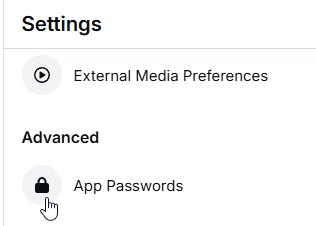
Next you will click "Add App Password". Name it Skyfeed so you know what it was for, this is helpful if Skyfeed was ever compromised you could delete the App password and create a new one without changing your actual account password.

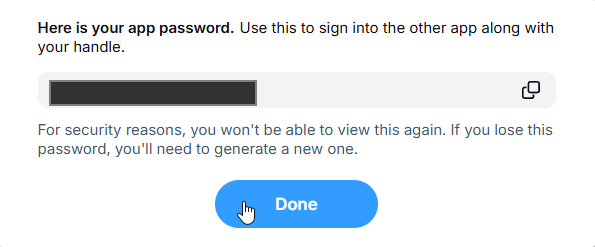
After you've clicked create you will be given a random string of characters, copy this down somewhere handy for now since you will not be able to view it again.
Logging Into Skyfeed.app
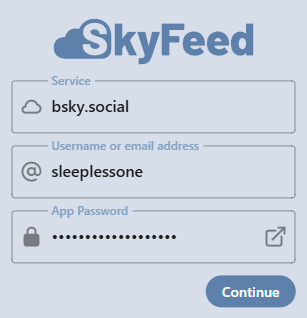
Now that you have your app password you are ready to sign into Skyfeed. Enter your info and your app password into the sign in screen.
Creating the Feed - "My Art Feed"
Once you're signed in click on the Feed Builder in the leftmost column. And you should get something like the following. If not, click the drop down at the top of the column to create a new feed.
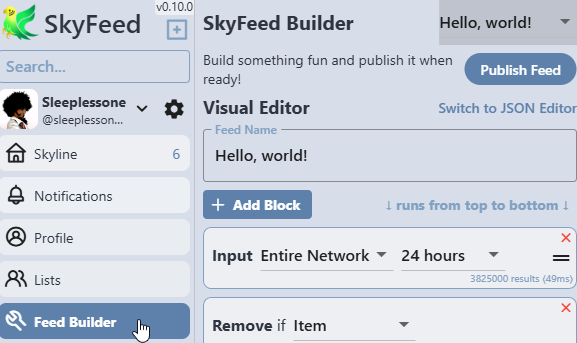
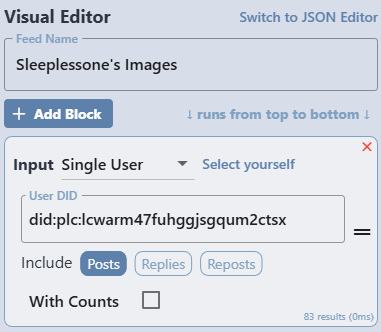
First, give your feed a name. This is what will show up in the Feeds list both on your profile and when someone searches so you will probably want to include your handle in the feed name. Next we want to change what we are inputting to the feed. By default Skyfeed inputs the entire Bluesky network for the last 24 hours we want to change it to just include your own account. Change the Input to Single User and click the "Select yourself" button that appears. For now we will only include posts, however if you want to include Reposts you will have to use the RegEx filter or it will include anything you Repost even if the original source isn't you. The feed preview window will show an error about the feed being empty and that's ok for now.
The next default block SkyFeed added was "Remove if Item is Reply". Since we are only including posts and not replies this block is redundant, but instead of removing it we will change it to remove posts that don't include images. Click the dropdown menu labeled "Item" and change it to "Image Count" and make sure the second part is "equals 0"

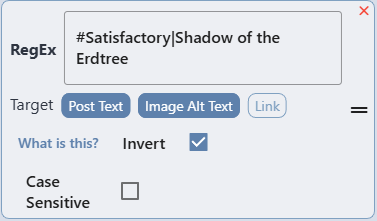
The last step is to decide if you want all posts with images or just specific ones. If you want to include specific images only decide on word or hashtag that you will include in every post or in the alt text and we will use this in the default RegEx block. If you just want to include all image posts you can simply delete the RegEx block by clicking the red X.
If you do want to filter your images then inside the RegEx block enter the text you want to match. If you want to match multiple hashtags or words/phrases seperate each by a | but don't include any spaces on either side of it. Also select Post Text and Image Alt Text for your targets and leave Invert unchecked as that would remove posts that match. The following example would match posts with #Satisfactory or the phrase "Shadow of the Erdtree".
Lastly choose how you want the results sorted. The default of Creation Date (descending) is typically what you would want. But you could also sort it by Like Count or use the HN Ranking which orders them in a combination of post age and number of likes.
Lastly you need to click the Publish Feed button at the top of the column. After clicking you'll be given the option to upload an avatar image for the feed as well as enter a description. You can also select a license for the feed. Note that this is the license for the feed itself, not the content of the feed. Leaving it on the default of EUPL-1.2 means someone else can use your feed and modify it for their own use, for example maybe they want your feed in random order.

That's it, your feed should be published and available for use.
Creating an "Art from Artists I Like" Feed
This can be done using the method above with a few caveats. Mainly that when not using Single User Skyfeed will only maintain up to 7 days worth of posts. And second since you're inputting someone elses posts you won't reliably be able to use the RegEx block so you will just get posts with any images.
First you will want to create a list in Bluesky by clicking on Lists and clicking New. Fill out the info to start your list. Then comes the tedious part, you will need to go to each user's profile page click the 3 dot menu, select Add to Lists and then click Add next to the list you just created.

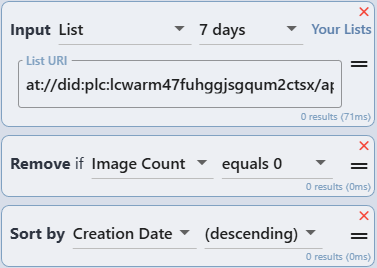
You can now follow the guide above but for Input you'll select your List instead of using a single user input. You will also need to remove the RegEx block since they are not your posts you can't guarantee what text will be in them. The final result should look something like this.